-2.png?height=120&name=Ozen%20Long%20-%20Back%20(1)-2.png)
- Help Center
- Fluent
-
Getting Started With Ansys
-
Ansys Installation
-
Licensing
-
Ansys Mechanical
-
ANSYS AEDT
-
Ansys Maxwell
-
Ansys HFSS
-
Ansys CFD
-
CAD
-
Meshing
-
LS-Dyna & LS-Prepost
-
SpaceClaim
-
Ensight
-
Ansys Lumerical
-
Zemax
-
Discovery
-
AUTODYN
-
Workbench
-
Ansys EMC Plus
-
SIwave
-
CFD-Post
-
Ansys Sherlock
-
Q3D
-
Ansys 3D Layout
-
Fluent Meshing
-
Thermal Desktop
-
Icepak
-
Ansys Icepak
-
Twin Builder
-
Fluent
-
AEDT Circuit
-
EMA3D
-
Linux
-
Optislang
-
Motor-CAD
-
Ansys CFX
How to postprocess Icepak AEDT results in CFD Post.
This article explains a workaround to postprocess Icepak AEDT results in Ansys CFD Post.
- You have to have a finished simulation or have had a clean stop.
- Look for the results folders.

- Inside the AEDT results folder, look for your Icepak project results folder.

- Inside the results folder, look for a folder ending in .restart.

- Inside the restart folder, look for the .nc_cas file and the .dat.h5 file.
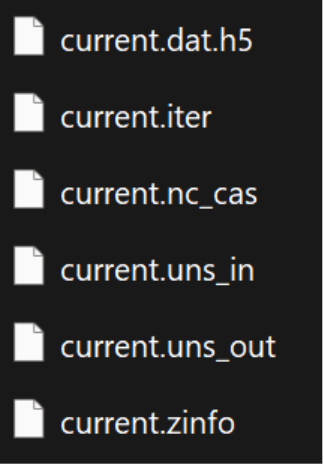
- After identifying the files, open Fluent either in the standalone version or within the workbench.
- Open only the case file and select the current .nc_cas file. If you try to open the case and data at the same time, it will give you an error.
- After you open the .nc_cas file, read or import only the data file.
- Check in Fluent if the temperature, velocity, or other results were imported correctly.
- Save the Fluent files with a different name.
- Finally, open the case file created in step 10 with CFD Post.
- Postprocess your results.